Managing Endpoint Agent
Once installed, the agent runs as the AnyOneAgent Windows service. This chapter
covers checking its status, reading its logs, and stopping it. The control
actions require administrator privileges.
Checking the Agent Status
From an elevated prompt, query the agent and both drivers:
sc.exe query AnyOneAgent
sc.exe query AnyKDriver
sc.exe query AnyMDriver
Each should report STATE: RUNNING.
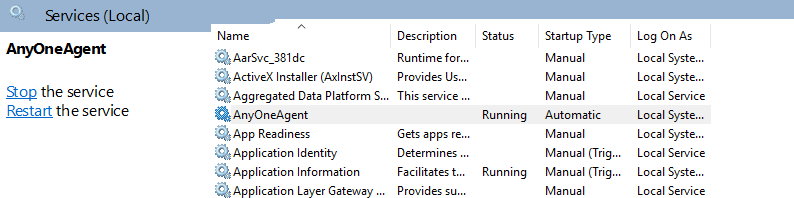
You can also use the Windows Services console. Press Win + R, run
services.msc, and find the AnyOne Endpoint Agent service (service name
AnyOneAgent). The console shows its status and startup type, and lets you
start, stop, or restart it.
Accessing the Agent’s Logs
As a service, the agent writes rotating log files to:
C:\ProgramData\AnyOne\logs\
The current log is anyone-agent_rCURRENT.log. Older files are rotated and
numbered, capped at 10 MB each and 5 files kept. To follow the live log in
PowerShell:
Get-Content C:\ProgramData\AnyOne\logs\anyone-agent_rCURRENT.log -Wait -Tail 30
The log level is controlled by the RUST_LOG variable in the service
configuration (error, warn, info, debug, or trace, default info).
ℹ️ When run in the foreground with
--console, the agent logs to the terminal instead of to a file.
Stopping the Agent
Stopping requires administrator privileges. To stop the agent, from an elevated prompt:
sc.exe stop AnyOneAgent
This stops the agent only. The AnyKDriver and AnyMDriver drivers stay
loaded, which is expected. The agent re-attaches to them the next time it
starts.
You only need to stop the drivers when fully removing the agent. In that case stop them after the agent, never before:
sc.exe stop AnyOneAgent
sc.exe stop AnyKDriver
sc.exe stop AnyMDriver
ℹ️ Order matters. The agent holds open handles to both drivers, so stopping a driver before the agent leaves it marked for deletion and hanging until the agent releases its handle.