AnyOne EDR Agent Documentation
Documentation for the AnyOne EDR Windows endpoint agent, by MarkAny GaneshaIT. In the future, we might have documentation for the whole AnyOne EDR System.
- Installation Guide: build, install, configure, and manage the endpoint agent.
- Technical Reference: architecture and internals of the agent.
Introduction
System Overview
AnyOne EDR is an endpoint detection and response platform made by MarkAny GaneshaIT. It is deployed as two components: endpoint agents and a backend server. The endpoint agent collects telemetry on each host. The backend server ingests that telemetry, stores it, detects malicious patterns, and runs automated LLM-assisted or manual SOC analysis to remediate threats. The SOC dashboard gives operators a single place to monitor security posture and dispatch response actions.
This documentation covers the endpoint agent. The backend components (the gateway, the SOC dashboard, the static-analysis service, and the certificate authority) are operated separately and are out of scope here.
AnyOne EDR Agent is AnyOne EDR’s Windows endpoint agent. It collects kernel-level telemetry, normalizes it to OCSF (v1.8.0), and streams it to the cloud backend over gRPC. On startup it enrolls by opening a long-lived mTLS control channel to the gateway. Beyond telemetry it also runs locally: static-analysis orchestration, tamper detection, and remediation (kill process, quarantine file, isolate host), both on server command and autonomously. Event correlation and alerting remain server-side.
Document Purpose
This guide explains how to install, configure, and run the AnyOne EDR Windows endpoint agent. It is written for the people who put the agent on endpoints:
- end users following a one-time install link,
- administrators rolling the agent out from the SOC dashboard,
- and engineers deploying or troubleshooting it by hand.
Document Scope
This guide covers installation of the Windows endpoint agent only. It does not cover deploying or operating the backend components.
🚧 A unified operational handbook that also covers backend deployment is planned for a future version. It is not part of this document.
Building from Source
The agent and its drivers live in two separate repositories and build with two different toolchains. Build the drivers with Visual Studio and the WDK, and build the agent with the Rust toolchain.
Source Code
The source is split across two private repositories:
- AnyOne-Endpoint: the Rust endpoint agent, CLI, and notifier (this repository).
- AnyOne-Kernel: the Windows kernel drivers,
AnyKDriver(kernel callbacks) andAnyMDriver(file-system minifilter).
ℹ️ Both repositories are internal to MarkAny GaneshaIT. Request access and clone URLs from:
Addin Munawwar (GaneshaIT)
Email / Slack: addin@ganeshait.com
Building the Drivers
The drivers are built from the AnyOne-Kernel repository. They are standard Windows kernel-mode C drivers and require Visual Studio 2022 with the Windows Driver Kit.
Prerequisites:
For the complete setup, follow Microsoft’s guide: Write a Universal Hello World driver (KMDF).
- Install the Windows Driver Kit (WDK). The Debugging Tools for Windows are included with the WDK.
- Install Visual Studio 2022 (this version is required for stable kernel driver development). Select the Desktop development with C++ workload, then under Individual Components add:
- MSVC v143 - VS 2022 C++ ARM64/ARM64EC Spectre-mitigated libs (Latest)
- MSVC v143 - VS 2022 C++ x64/x86 Spectre-mitigated libs (Latest)
- C++ ATL for latest v143 build tools with Spectre Mitigations (ARM64/ARM64EC)
- C++ ATL for latest v143 build tools with Spectre Mitigations (x86 & x64)
- C++ MFC for latest v143 build tools with Spectre Mitigations (x86 & x64)
- C++ MFC for latest v143 build tools with Spectre Mitigations (ARM64/ARM64EC)
- Windows Driver Kit
Important: The WDK and Windows SDK versions must match, for example both 10.0.26100.0.
To build:
- Open
AnyEDR-Drivers.slnin Visual Studio 2022. - Select the
Release | x64configuration. - Build → Rebuild Solution.
This produces both drivers under each project’s x64\Release folder:
AnyKDriver\x64\Release\AnyKDriver.sysAnyMDriver\x64\Release\AnyMDriver.sys
ℹ️ The build output is using test signing only. Running test-signed drivers requires enabling test signing on the target machine, covered under Environment Setup. The signing process is handled by MarkAny for production setup.
Building the Agent
The agent is built from the AnyOne-Endpoint repository (this repository) on Windows x64.
Prerequisites:
- Rust stable toolchain, 2024 edition (1.85 or newer), MSVC host (
x86_64-pc-windows-msvc). Install via rustup. - Visual Studio Build Tools 2022 with the Desktop development with C++ workload. Rust compiles the code but ships no linker for the MSVC target. It calls the MSVC linker (
link.exe) to produce the final executables and links against the Windows SDK import libraries. This workload provides both.
To build the full workspace:
cargo build --release --workspace
The binaries land in target\release\:
| Crate | Binary | Description |
|---|---|---|
service | anyone-agent.exe | The EDR agent runs as a Windows service. It collects telemetry and carries out remediation. |
cli | anyedr-cli.exe | An interactive shell that connects to a running agent over a named pipe to send commands. Could be re-purposed in the future. |
notifier | anyone-agent-notifier.exe | A binary the agent spawns to show a Windows toast notification to the logged-in user. |
Environment Setup
The current binaries and drivers are development builds. They are test-signed only, so they run on test environments only, not on production endpoints. Three things must be prepared on the target machine before installation: UEFI secure boot disabled, test signing for the kernel drivers, and the Visual C++ runtime for the agent.
Test Signing
Windows refuses to load test-signed kernel drivers by default. On a test machine, enable test signing so the self-signed drivers load:
bcdedit /set testsigning on
Reboot for the change to take effect. Windows shows a “Test Mode” watermark on the desktop once it is active.
ℹ️ Secure Boot must be disabled for test signing to take effect. Production signing is handled by MarkAny and applies to release builds only.
Visual C++ Redistributable
The agent binaries link the Microsoft Visual C++ runtime dynamically, so the target machine needs it installed. Install the Microsoft Visual C++ Redistributable (x64). Without it, the agent fails to start with a missing vcruntime140.dll error.
Installing from SOC Dashboard
This is the standard installation path. An administrator generates a one-time installation link from the SOC dashboard, and the target endpoint uses that link to download and run the installer.
Generate the installation link
- In the SOC dashboard, add a new user. When registration completes, the dashboard generates the installation link.
- For an existing user, click the download icon
 in that user’s row to generate the link.
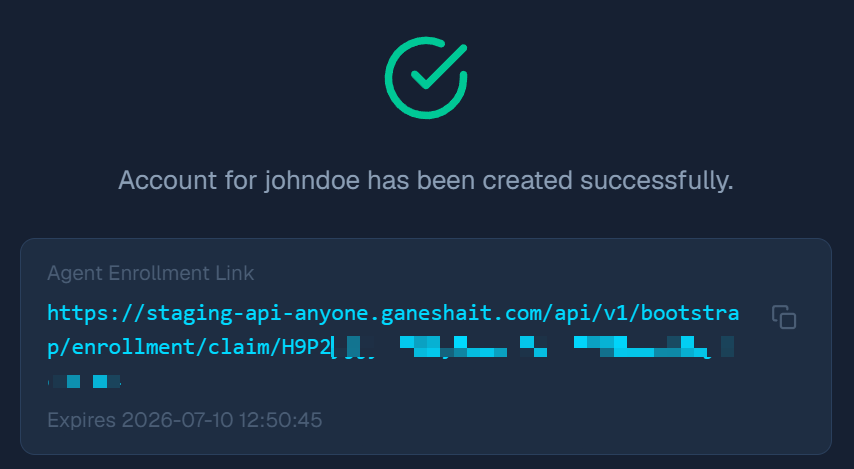
ℹ️ The link carries a claim token:
https://<base_url>/api/v1/bootstrap/enrollment/claim/<token>The token acts as the download claim and can be used only once.
Install on the endpoint
- Open the generated link from the target endpoint to download the installer.
- Run the installer with administrator privileges (important).
- The installer finishes and removes itself afterward.
Verify the installation
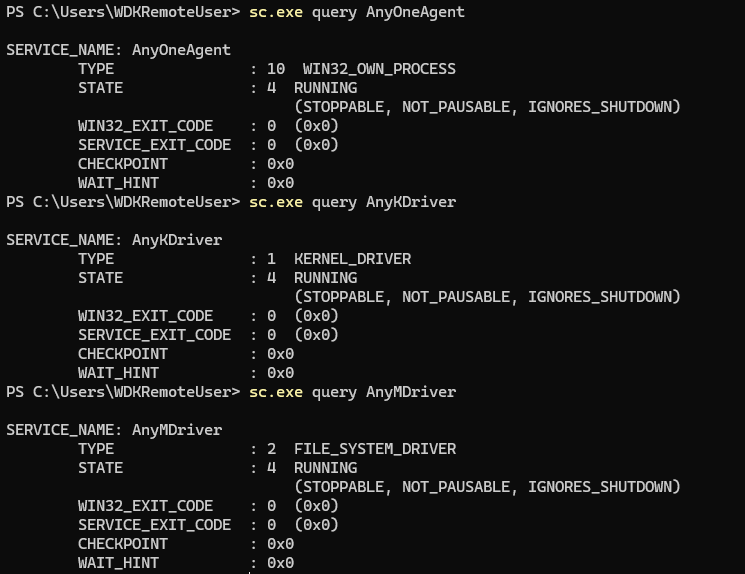
Confirm the agent service and both drivers are running:
sc.exe query AnyOneAgent
sc.exe query AnyKDriver
sc.exe query AnyMDriver
Each should report STATE: RUNNING.
Manual Installation
Manual installation registers the agent as a Windows service by hand, without the installer. It is intended for advanced users, or when you need configuration the dashboard installer does not expose. The steps below reproduce what the installer does: place the files, provision credentials, register the service, write the service configuration, and start it.
Prerequisites
- Build the agent binaries and the drivers from source. See Building from Source.
- A provisioning host with the enrollment-tool and a configured step-ca instance. Credentials are minted there, not on the endpoint.
ℹ️ AnyOne-Tools repository is internal to MarkAny GaneshaIT. Request access from:
Addin Munawwar (GaneshaIT)
Email / Slack: addin@ganeshait.com
Obtaining the Credentials
Every step in this section runs on the provisioning host (server side), not on the endpoint. The endpoint only receives the resulting files and values. For the full tool reference, see the AnyOne-Tools README.
The managed enrollment path needs three things on the endpoint: a device enrollment credential (certificate and key), the step-ca connection values, and the command-signing anchor public key. Mint them on the provisioning host as follows.
Create enrollment CA and provisioner
Initialise the offline enrollment CA. Keep both output files on the secured provisioning host. The key is never deployed.
enrollment-tool ca init --out /path/to/enrollment-ca/
Register the X5C provisioner with step-ca using the CA root it produced. The provisioner name must equal the CA_PROVISIONER value you set on every endpoint.
step ca provisioner add device-enrollment --type X5C --x5c-roots enrollment-ca.crt
Generate command-signing anchor key
Generate the anchor keypair. Store the private seed offline. Pin the public key on every endpoint as COMMAND_ANCHOR_PUBLIC_KEY_BASE64.
mint-trust-bundle anchor-init
The command prints anchor_private_seed_base64 (keep offline) and anchor_public_key_base64 (the value used below).
Issue an enrollment certificate (per-device)
On the provisioning host, issue a credential for the target endpoint. Use the endpoint’s hostname or another unique id as the device id.
ℹ️ In the automated dashboard install, the device id is the user’s username from the backend.
enrollment-tool cert issue \
  --device-id <hostname> \
  --ca-cert /path/to/enrollment-ca/enrollment-ca.crt \
  --ca-key  /path/to/enrollment-ca/enrollment-ca.key \
  --out /staging/<hostname>/
This produces <hostname>.crt (the certificate chain) and <hostname>.key (the plaintext key). Deliver both to the endpoint securely.
Record the step-ca values
You will need these when configuring the agent:
| Value | How to obtain it |
|---|---|
CA_URL | The step-ca sign and renew base URL, e.g. https://ca.example.com:9000. |
CA_FINGERPRINT | step certificate fingerprint root_ca.crt (hex SHA-256 of the step-ca root). |
CA_PROVISIONER | The X5C provisioner name registered above. |
ENROLLMENT_CERT_SUBJECT | The device id passed to cert issue. It must match the certificate CN. |
Placing the Files
Copy the binaries and drivers into the install directory:
C:\Program Files\AnyOne\anyone-agent.exe
C:\Program Files\AnyOne\anyone-agent-notifier.exe
C:\Program Files\AnyOne\AnyKDriver.sys
C:\Program Files\AnyOne\AnyMDriver.sys
Copy the delivered enrollment credential into the data directory, renamed to enrollment.crt and enrollment.key. Restrict the directory to SYSTEM.
C:\ProgramData\AnyOne\enrollment.crt
C:\ProgramData\AnyOne\enrollment.key
Registering the Service
Register the agent with the Service Control Manager from an elevated prompt:
sc.exe create AnyOneAgent binPath= "C:\Program Files\AnyOne\anyone-agent.exe" start= auto
ℹ️
sc.exerequires a space after each=.
Configuring the Agent
As a service, the agent reads its configuration from the service’s Environment value in the registry, which the Service Control Manager injects into the process at start. Write it with PowerShell from an elevated prompt. The service must already be registered, since this writes under its service key.
⚠️ Change the configuration lines marked by <brackets>
$svc = 'HKLM:\SYSTEM\CurrentControlSet\Services\AnyOneAgent'
New-ItemProperty -Path $svc -Name Environment -PropertyType MultiString -Force -Value @(
  # General
  'GRPC_ENDPOINT=https://gateway.anyone.example.com'
  'KERNEL_DRIVER_PATH=C:\Program Files\AnyOne\AnyKDriver.sys'
  'MINIFILTER_DRIVER_PATH=C:\Program Files\AnyOne\AnyMDriver.sys'
  'AUTO_KILL_MODE=disabled'

  # Credentials
  'CA_URL=https://<ca_url>'
  'CA_FINGERPRINT=<hex SHA-256 of the step-ca root>'
  'COMMAND_ANCHOR_PUBLIC_KEY_BASE64=<anchor public key>'
  'ENROLLMENT_CERT_SUBJECT=<device-id>'
  'CA_PROVISIONER=device-enrollment'
  'ENROLLMENT_X5C_CERT_PATH=C:\ProgramData\AnyOne\enrollment.crt'
  'ENROLLMENT_X5C_KEY_IMPORT_PATH=C:\ProgramData\AnyOne\enrollment.key'
)
The essential variables are:
| Variable | Purpose |
|---|---|
GRPC_ENDPOINT | gRPC gateway for telemetry and the control channel. |
KERNEL_DRIVER_PATH | Path to AnyKDriver.sys on the target. |
MINIFILTER_DRIVER_PATH | Path to AnyMDriver.sys on the target. |
AUTO_KILL_MODE | Autonomous response mode: disabled, dry_run, or enforce. |
CA_URL | step-ca sign and renew base URL. |
CA_FINGERPRINT | Pinned step-ca root SHA-256 fingerprint. |
CA_PROVISIONER | step-ca X5C provisioner name. |
ENROLLMENT_CERT_SUBJECT | Device id. Must match the enrollment certificate CN. |
ENROLLMENT_X5C_CERT_PATH | X5C device certificate. |
ENROLLMENT_X5C_KEY_IMPORT_PATH | Delivered plaintext key. |
COMMAND_ANCHOR_PUBLIC_KEY_BASE64 | Anchor Ed25519 public key. Required when command verification is on. |
ℹ️ The full annotated list of every setting and its default is in AnyOne-Endpoint repository in
service/.env.example. The names are identical whether they are set as.envlines or as serviceEnvironmententries.
Running and Verifying
Start the service:
sc.exe start AnyOneAgent
On startup the agent installs and starts AnyKDriver and AnyMDriver, and
opens its control channel to the gateway. Confirm the agent and both drivers are
running:
sc.exe query AnyOneAgent
sc.exe query AnyKDriver
sc.exe query AnyMDriver
Each should report STATE: RUNNING.
Managing Endpoint Agent
Once installed, the agent runs as the AnyOneAgent Windows service. This chapter
covers checking its status, reading its logs, and stopping it. The control
actions require administrator privileges.
Checking the Agent Status
From an elevated prompt, query the agent and both drivers:
sc.exe query AnyOneAgent
sc.exe query AnyKDriver
sc.exe query AnyMDriver
Each should report STATE: RUNNING.
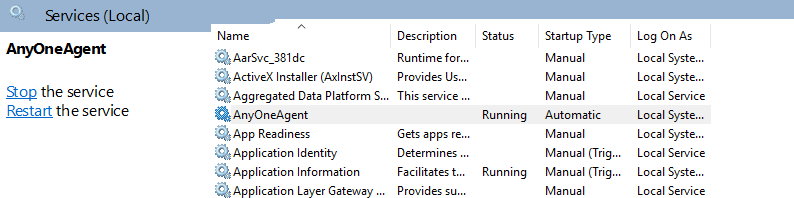
You can also use the Windows Services console. Press Win + R, run
services.msc, and find the AnyOne Endpoint Agent service (service name
AnyOneAgent). The console shows its status and startup type, and lets you
start, stop, or restart it.
Accessing the Agent’s Logs
As a service, the agent writes rotating log files to:
C:\ProgramData\AnyOne\logs\
The current log is anyone-agent_rCURRENT.log. Older files are rotated and
numbered, capped at 10 MB each and 5 files kept. To follow the live log in
PowerShell:
Get-Content C:\ProgramData\AnyOne\logs\anyone-agent_rCURRENT.log -Wait -Tail 30
The log level is controlled by the RUST_LOG variable in the service
configuration (error, warn, info, debug, or trace, default info).
ℹ️ When run in the foreground with
--console, the agent logs to the terminal instead of to a file.
Stopping the Agent
Stopping requires administrator privileges. To stop the agent, from an elevated prompt:
sc.exe stop AnyOneAgent
This stops the agent only. The AnyKDriver and AnyMDriver drivers stay
loaded, which is expected. The agent re-attaches to them the next time it
starts.
You only need to stop the drivers when fully removing the agent. In that case stop them after the agent, never before:
sc.exe stop AnyOneAgent
sc.exe stop AnyKDriver
sc.exe stop AnyMDriver
ℹ️ Order matters. The agent holds open handles to both drivers, so stopping a driver before the agent leaves it marked for deletion and hanging until the agent releases its handle.
Updating the Agent
🚧 Under construction. This chapter is a work in progress.
Agent updates are handled by the anyone-updater service, a boot-time
component that verifies a staged update against a health gate and rolls back on
failure. The full update and rollback procedure will be documented here.
Technical Reference
⚠️ Under construction. This section is a work in progress and will be written after the Installation Guide is complete.